Seamless Connectivity: Your Phones On Your PC with Microsoft PhoneLink

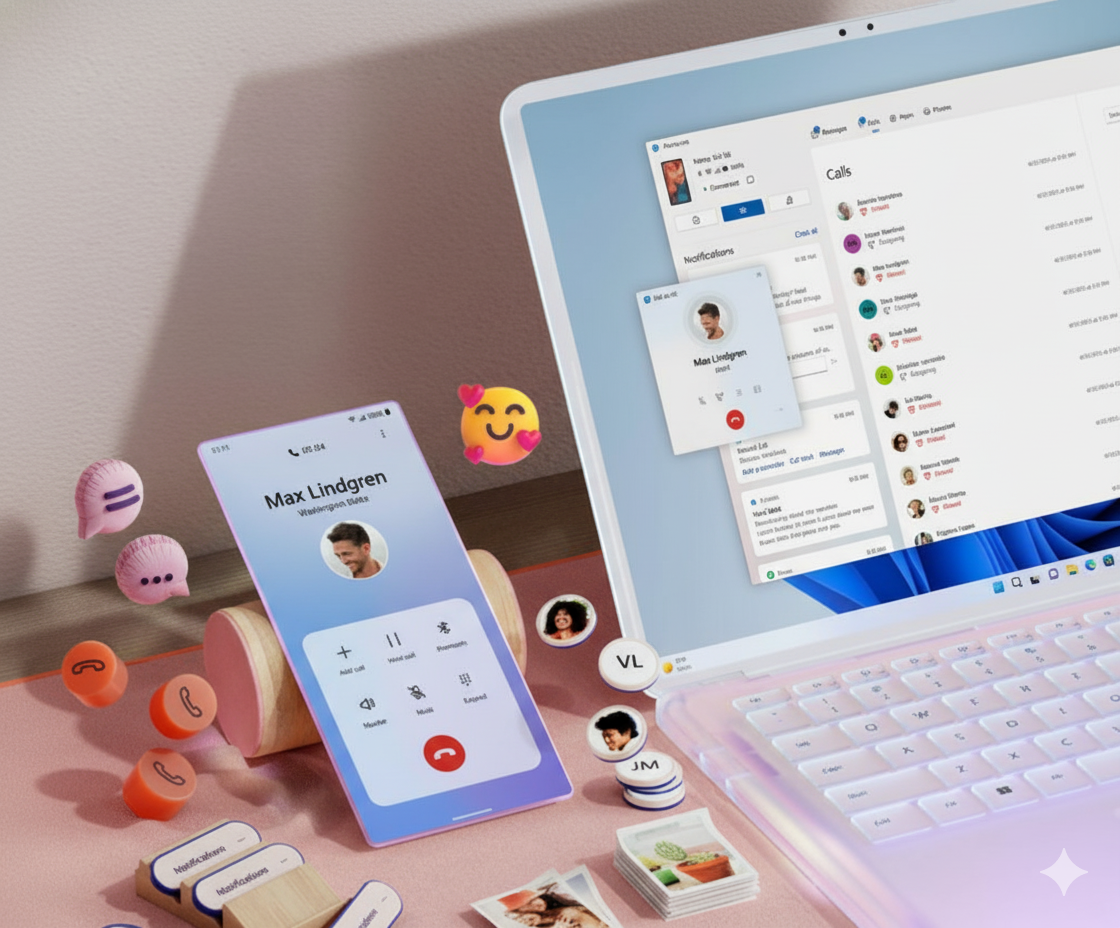
In today's hyper-connected world, juggling your smartphone and computer can be a constant productivity drain. That's where Microsoft PhoneLink steps in, transforming your Windows PC into a unified hub for your digital life. This powerful, free tool bridges the gap between your cell phone and your desktop, allowing you to view and interact with your phone's content right on your PC screen.
The Magic of PhoneLink
PhoneLink (formerly "Your Phone") consists of two components: the PhoneLink app on your Windows PC and the Link to Windows app (or its built-in equivalent on select devices) on your Android or iPhone. Once connected, a new world of cross-device convenience opens up:
- View Notifications: Get and dismiss all your phone's notifications—from texts to app alerts—right on your desktop.
- Manage Messages: Send and receive text messages without ever picking up your phone.
- Make and Receive Calls: Use your PC's speaker and microphone to handle phone calls.
- Access Photos: Instantly view and drag-and-drop your recent photos from your phone to your PC.
- Screen Mirroring (Android Only): For select Android devices, you can mirror your entire phone screen to your PC and interact with any app using your mouse and keyboard.
- Cross-Device Copy/Paste: Copy text on your phone and paste it directly onto your PC, or vice versa.
This integration allows you to stay focused on your PC while keeping a pulse on your mobile world, significantly boosting multitasking efficiency.
Adding Multiple Devices for a Truly Unified Experience
For power users or those who own both a personal and a work phone, one of Phone Link's most valuable features is the ability to connect numerous devices to a single PC.
How it Works:
- Same Microsoft Account: The key to multi-device connection is ensuring all your devices are signed in with the same Microsoft account on the Phone Link app on your PC and the Link to Windows app on each cell phone.
- Adding a New Phone: After setting up your first device, you can easily add another by going to the Settings or Devices section within the Phone Link app on your PC and selecting "Add a new device." You will follow the familiar QR code or manual pairing process for the new phone.
- Switching Between Phones: Once multiple phones are linked, you can see all of them listed in the Phone Link app's interface. While only one phone can be actively viewed and controlled at a time (allowing you to access its messages, photos, etc.), switching between them is as simple as a single click.
Note: While a single PC can link to multiple phones, and your phone can link to multiple PCs, you can only actively use one phone-to-PC connection at a time.14 For instance, if you open Phone Link on your work laptop, the connection on your home desktop will temporarily pause.
Getting Started with Phone Link
Setting up Phone Link is a quick and straightforward process:
- Check Requirements: Ensure your PC is running Windows 10 (May 2019 Update or later) or Windows 11, and your mobile device meets the minimum OS requirements (Android 7.0+ or iOS 14.0+).
- PC App: Open the Phone Link app (it's often pre-installed on Windows 11; if not, download it from the Microsoft Store).
- Mobile App: Download and install the Link to Windows app from the Google Play Store (Android) or the Phone Link app from the App Store (iPhone).
- Pairing: Start the pairing process on your PC. You will typically be asked to sign in with your Microsoft account and then scan a QR code displayed on your PC using your mobile phone's companion app.
- Permissions: Grant the necessary permissions on your phone to allow the PC app to access features like notifications, messages, and photos.